Higgsfield AI in Claude Cowork: A Complete Setup & Production Guide
Higgsfield AI is now accessible directly inside Claude Cowork. Here is how to connect it, write prompts that work, and produce cinematic-quality images and videos in minutes.
88 Labs AI
Editorial Team
Why this matters
Claude Cowork is Anthropic's shared, multiplayer workspace for Claude — a place where teams brief, draft, and ship together. Higgsfield AI is one of the most respected cinematic image and video generators on the market, known for camera-controlled motion, character consistency, and ad-grade output.
The two are now connected. Inside Claude Cowork you can spin up a Higgsfield session, hand Claude a creative brief, and generate publish-ready visuals without ever leaving the chat. For marketing, product, and content teams, that turns a multi-tool, multi-day workflow into a single conversation.
What you can do with Higgsfield in Claude Cowork
Step 1 — Get access
1. Sign in to claude.ai with a Pro, Team, or Enterprise plan (Cowork requires a paid seat).
2. Open Cowork from the left sidebar and create a new workspace, or join your team's existing one.
3. Sign up at higgsfield.ai and confirm you have credits on your account. Team plans share a credit pool.
Step 2 — Connect Higgsfield to Claude Cowork
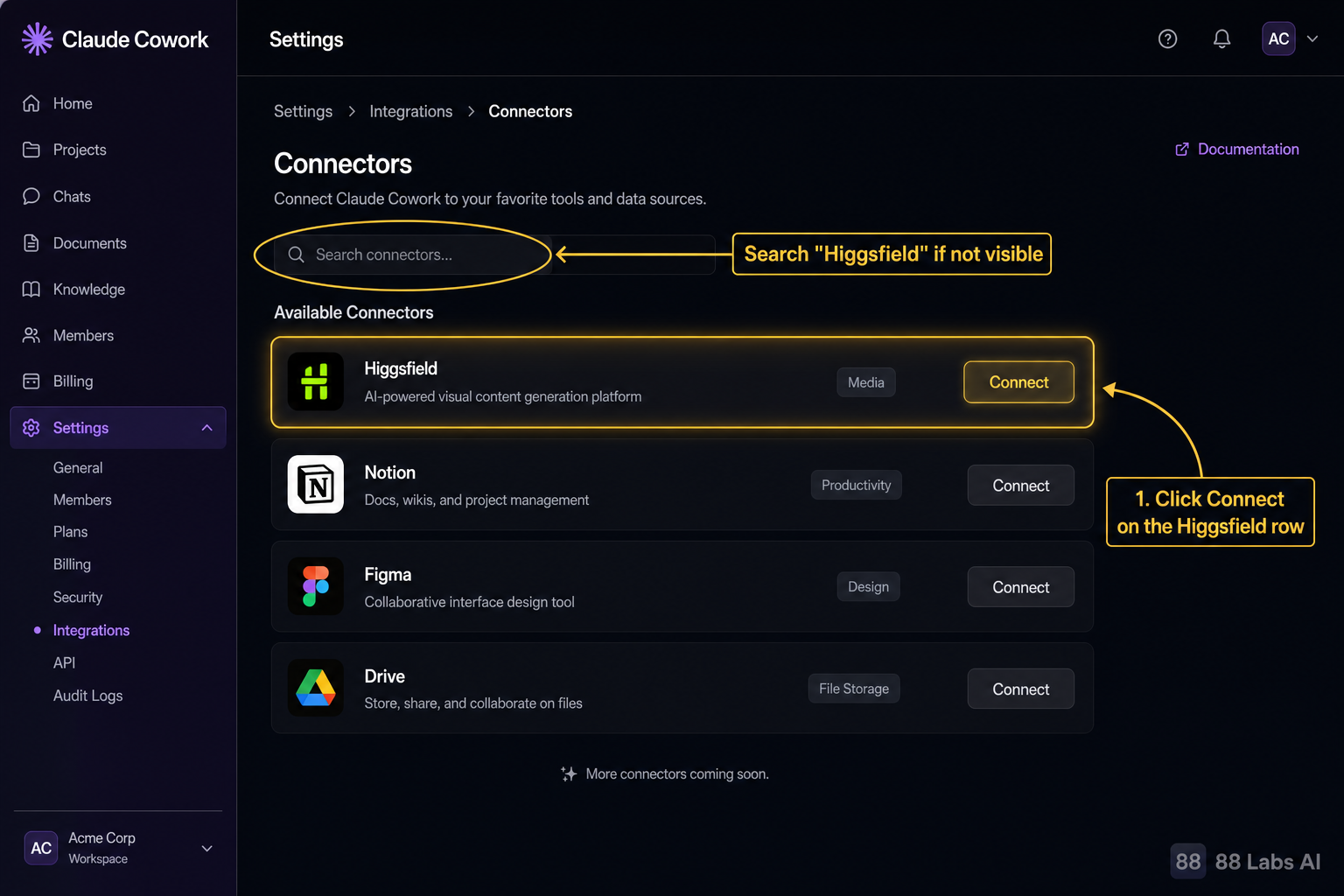
1. Inside your Cowork workspace, open Settings → Integrations → Connectors.
2. Search for Higgsfield and click Connect.
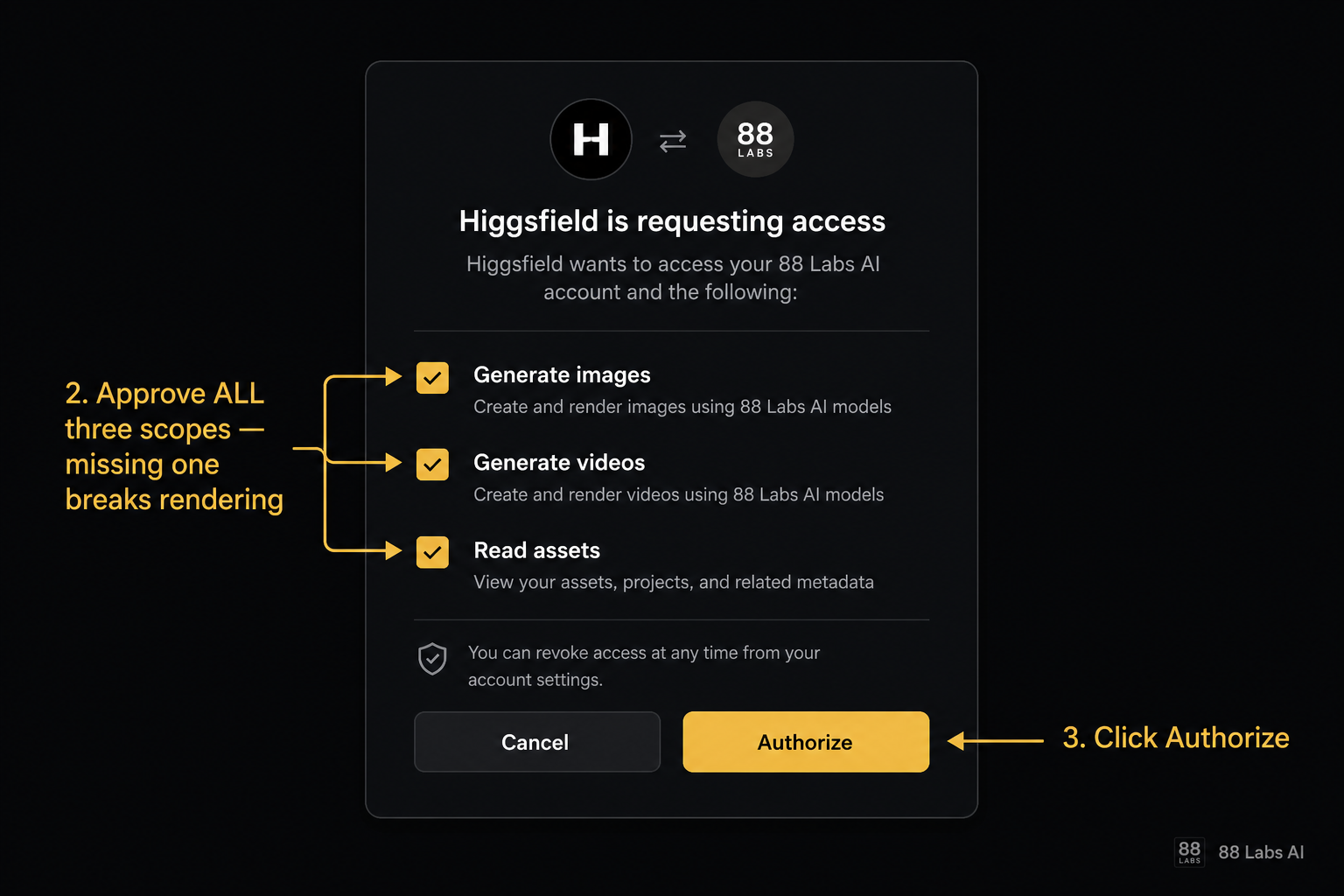
3. You'll be redirected to higgsfield.ai to authorize the connection. Approve the OAuth scopes for image generation, video generation, and asset read.
4. Back in Cowork, choose which projects Higgsfield can post assets to. We recommend a dedicated "Creative" project so generations don't clutter ops channels.
5. Confirm the connection by typing `@Higgsfield ping` in any Cowork thread. You should get a status reply within a few seconds.
> Tip: If the connector doesn't appear, your workspace admin needs to enable third-party connectors in Admin → Security → App connections first.
Claude Cowork setup checklist
Run through this list once before your first generation. It takes about 5 minutes.
Quick verification
Before you brief a real campaign, confirm everything is wired correctly:
1. Ping test — In any Cowork thread, type `@Higgsfield ping`. You should get a status reply within a few seconds. No reply means the connector isn''t authorized.
2. Permissions test — Ask Claude: "List the Higgsfield models available in this workspace." Claude should return the current image and video models. If it says it can''t see Higgsfield, re-check connector scopes.
3. Render test — Run a tiny image job: `@Higgsfield image prompt: "a single red apple on white seamless, studio light" aspect_ratio: 1:1`. A render should appear inline within ~30 seconds.
4. Asset routing test — Click Send to project on the test render and confirm it lands in your "Creative" project library, not the thread only.
5. Teammate visibility test — Have a colleague open the thread and confirm they can see the render and react. If they can''t, your project sharing settings need adjusting.
If all five pass, you''re ready to ship real work.
Step 3 — Your first image generation
In a Cowork thread, mention Claude and ask it to draft a Higgsfield prompt. For example:
> Claude, write a Higgsfield prompt for a hero image: a founder in a sunlit warehouse, shot on 35mm, golden hour, shallow depth of field, cinematic.
Claude will produce a structured prompt. Then run:
```
@Higgsfield image
prompt: <paste Claude's prompt>
aspect_ratio: 16:9
style: cinematic
seed: 42
```
The render appears inline in the thread in 15–40 seconds.
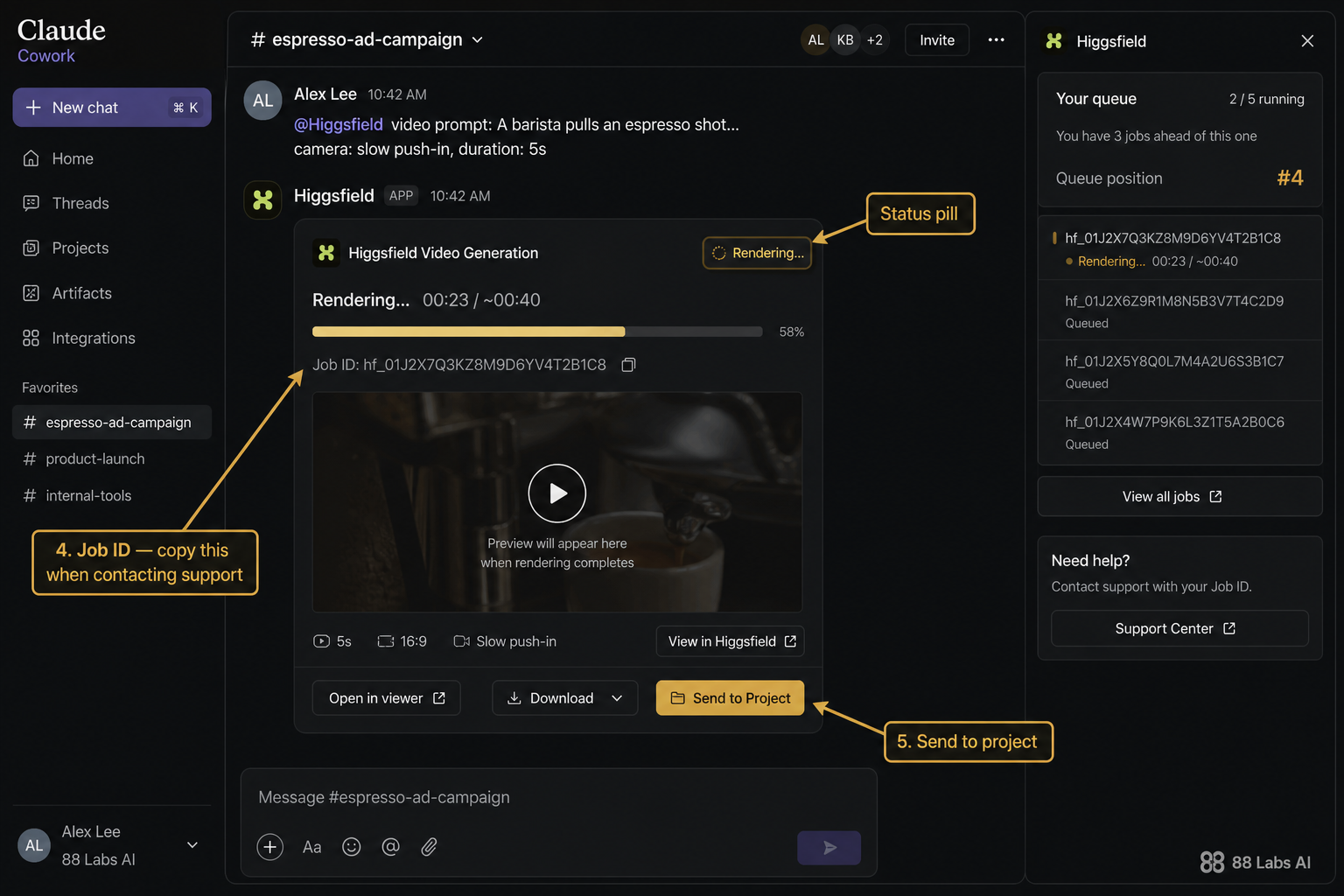
!Annotated Higgsfield job panel inside a Claude Cowork thread showing the job ID, status pill, and Send to Project button Anyone in the workspace can react, comment, or ask Claude to revise the prompt.
Step 4 — Your first video generation
Higgsfield's edge is camera control. Use it.
```
@Higgsfield video
prompt: A barista pulls an espresso shot, steam rising
camera: slow push-in
duration: 5s
resolution: 1080p
reference_image: <attach the still from Step 3>
```
Attaching the still you just generated locks the look — same lighting, same character, same lens — and animates it. This is how you build a consistent reel instead of a pile of one-off clips.
Step 5 — Prompts that produce quality output
Higgsfield rewards specific, cinematographic language. Generic prompts give generic results.
Strong prompt structure:
Example — weak:
> A woman drinking coffee in a cafe.
Example — strong:
> A woman in a charcoal turtleneck sips espresso at a marble counter, morning light through a tall window, 50mm lens, soft rim light, shallow depth of field, muted Kodak Portra palette, slow dolly in.
Step 6 — Iterate as a team
This is where Cowork pays off. After the first render:
1. Tag a teammate for feedback in the same thread.
2. Ask Claude: "Tighten this prompt — make the lighting harsher and the camera move slower."
3. Re-run `@Higgsfield video` with the revised prompt and the same seed to keep the look stable while changing one variable at a time.
4. When approved, click Send to project to push the asset into your shared media library or directly into a Notion / Figma / Drive folder via the existing Cowork integration.
Quality checklist before you ship
Common pitfalls
Troubleshooting common setup failures
Most issues fall into a handful of patterns. Work through them in this order before contacting support.
1. `@Higgsfield ping` returns nothing
2. "Insufficient scopes" or "permission denied" errors
3. Job submitted but never renders
4. Render appears but is blank, black, or corrupted
5. Render won't post into the Cowork project library
6. Teammates can't see the render
7. Claude refuses to write Higgsfield prompts
Still stuck?
Capture the job ID from the Higgsfield panel and the thread permalink from Cowork before you escalate. Both Anthropic and Higgsfield support resolve issues 5x faster when you provide them.
Why this combo wins
Most teams stitch ChatGPT, Midjourney, Runway, Slack, and Drive together to ship a single ad. Claude Cowork + Higgsfield collapses the brief, the draft, the render, and the review into one shared room. You go from idea to publish-ready cinematic asset in a single afternoon, with the whole team in the loop.
If you want help wiring this into your marketing stack — including custom AI agents that brief, generate, and post on your behalf — book a free demo and we'll show you what a fast deployment looks like.
Ready to see this in action?
Get a free, personalized demo of an AI agent built for YOUR business.
Get Your Free Demo